I am in a tidal wave of resources. With practicum just a few weeks away, I am overwhelmed with the incoming information about lesson planning, curriculum, and excellent links to resources. I plan to use this section of my site to bookmark quality resources that I want to remember in one easy place.
Screencasting allows you to record activities on a computer while you talk about what you are doing. To be more official, here is the Wikipedia definition:
A screencast is a digital recording of computer screen output, also known as a video screen capture or a screen recording, often containing audio narration.
https://en.wikipedia.org/wiki/Screencast
Why Screencast?
Personally, I love a good “how -to” screencast. It’s the next best thing to calling on a teacher or waiting for someone in the IT department to help you retrieve a lost file. I myself have had many experiences where I didn’t know how to do something on my computer which led me to a google search on “how-to______________” (insert task here). Reading through step-by-step directions while trying to follow along, clicking back and forth between my actual task and the in-text directions in another window was irritating and time-consuming. Enter the wonderful world of screencasting!
Screencasts can help you do many things from making pivot tables in excel to restoring a previous version of a word doc or creating WordPress multimedia posts. And kudos to the individuals who have created these screencasts because their passion, for what I would consider, totally boring tasks (seriously, excel pivot tables spark no joy) has helped me keep a project moving along. As a future educator who may need to prepare more for online teaching, I can see how creating screencasts can be helpful to support student learning. On that note, I had to learn how to make one. I followed the instructions from my teacher and created my very first screencast. Enjoy!
What a refreshing and relevant presentation! Jesse Miller spoke to our group of teacher candidates about social media in education. I found it refreshing because he addressed the commonly held view (that was part of my own educational experience) that “bad people” are on the internet and that kids should stay away from the internet and tech. His keynote encourages educators to learn how to use tech in positive and supportive ways and avoid internet fear among students, teachers, and parents. As future educators, it is our job to learn about tech and internet safety so that we can take care of our own digital profiles and be positive role models and digital citizens.
It’s the second week into tech 336 and we spent our class learning some rather dry but important information about copyright, data hosting, privacy, and Open Educational Resources. Here is a definition from UNESCO that will help me remember what OER is:
Open Educational Resources (OER) are teaching, learning and research materials in any medium – digital or otherwise – that reside in the public domain or have been released under an open license that permits no-cost access, use, adaptation and redistribution by others with no or limited restrictions. OER form part of ‘Open Solutions’, alongside Free and Open Source software (FOSS), Open Access (OA), Open Data (OD) and crowdsourcing platforms.
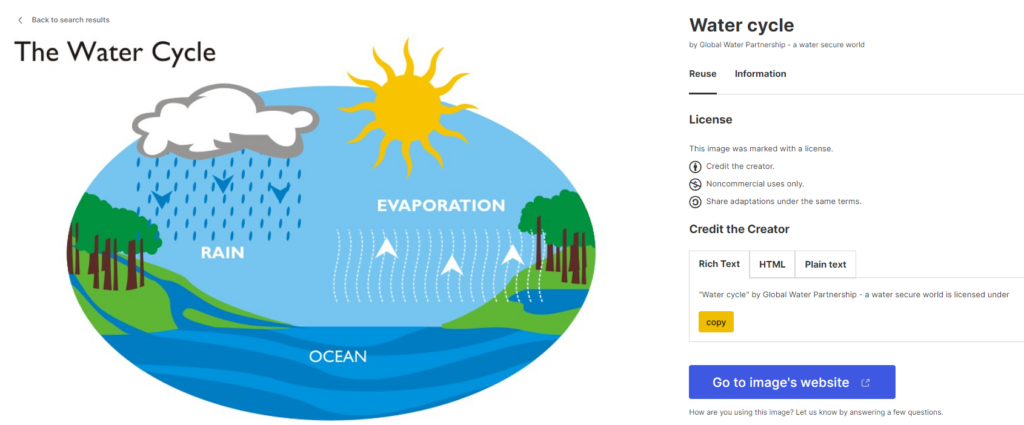
Searching for and using OER is beneficial to teachers because the resources can be used freely and openly without concerns about failing to comply with copyright laws. All you need to do is credit the person who created the content you are using. Basically, recognize that someone else’s hard work is making your job as a teacher that much easier. For example, I went to this website in search of some OER https://wordpress.org/openverse/?referrer=creativecommons.org and entered “water cycle” into the search bar. I was presented with over 10,000 results but chose one from the first page that looks like this:
There was even a handy little tool where I copied the credit and pasted it right here in my blog under the borrowed image. When I go searching for resources to enrich my future classroom, I need to look for the Creative Commons licensing icons that communicate in which ways I can use the resources I have found. The icons look like this
and they are defined on the Creative Commons website. This is the place to go when I find myself asking what can I do with this great resource I just found? I now also have a better list of places to go for openly licensed images and resources. Here are a few:
The benefits of using OER include easy access to quality materials for teachers with the reassurance that they can be used freely without copyright concern and without investing personal finances to find excellent resources. And that means better learning environments for students.




Recent Comments